
If you're still pinging developers every time you need to add or update a tracking script, you're working in the dark ages. Seriously. It’s slow, inefficient, and frankly, a dumb way to use your engineering team's talent. They should be building your product, not digging through code to drop in another marketing snippet.
This isn't just about making life easier; it's a fundamental shift in how you should manage your website's data layer.
Enter Google Tag Manager (GTM). Think of it as the command center for all your analytics and marketing tags. Instead of embedding a dozen different scripts from Google Analytics, Google Ads, or Meta directly into your site’s code, you install just one GTM script. That’s it. From that moment on, you control everything else from the GTM interface.
The core components you need to understand
Forget the dense technical docs for a minute. To actually use GTM effectively, you only need to get your head around three core concepts. Once these click, you unlock a level of speed and control that your competitors just can't match.
- Tags: These are the actual code snippets from third-party services. A Google Analytics 4 tag sends data to GA4, a Google Ads conversion tag reports a sale—you get the idea. Understanding what ad tags are is a good start, as they're the basic building blocks of everything you'll do in GTM.
- Triggers: These are simply the rules that tell your tags when to fire. A trigger could be a basic page view, a click on a specific "Request a Demo" button, or a successful form submission. You define the condition, and GTM listens for it to happen.
- Variables: Think of these as little placeholders for values that can change, like a product name, an order total, or a unique user ID. Instead of hardcoding "t-shirt" into a tag, you use a variable to dynamically grab the actual product name from the page when the tag fires.
The real power here isn't just managing scripts; it's about speed and control. You can launch, test, and iterate on marketing campaigns in hours, not weeks. This is how modern, data-driven companies operate. There’s no excuse to do it any other way.
Alright, let's get down to business. All the theory in the world is useless until you get the Google Tag Manager container live on your site. This is the bedrock for everything else we're going to do. If you mess this up, you're dead in the water before you even start.
Once you’ve created your GTM account and your first container, Google hands you two small blocks of code. Your job is to get these snippets into your website’s HTML correctly. And this isn't just a blind copy-paste job; where you put them is critical.
I know, this part can feel a little technical. But look at it this way: it’s a one-time setup that unlocks all the agility and power we've been talking about. We'll do it once, do it right, and you'll rarely have to bug a developer for tracking changes again.
Where to place the GTM code snippets
Google gives you very specific instructions here, and you need to follow them to the letter. One snippet goes high up in the <head> of your site's HTML, and the other goes right after the opening <body> tag. Placing them correctly is non-negotiable.
- The
<head>snippet: This is the main JavaScript block. Placing it as high as possible in the<head>ensures GTM loads early in the page-rendering process. This is what allows GTM to take control of other tags and fire them correctly before they have a chance to go rogue. - The
<body>snippet: This is a<noscript>block. Think of it as a safety net for the rare user who has JavaScript disabled. It's a much simpler version of GTM, but it ensures you still get some basic tracking data instead of a complete black hole.
Don't just email these snippets to your developer without context. Take a moment to understand why they go where they do. It’ll make you smarter when it comes to troubleshooting later and ensures your setup is solid from day one. This simple installation is your ticket to joining the over 4.2 million websites using GTM to get things done.
Let’s be perfectly clear: getting this installation right is everything. A sloppy setup leads to misfiring tags, polluted data, and massive headaches. Take the extra five minutes now to verify it’s perfect. You'll thank yourself later.
Verifying your GTM installation
Before you even think about adding your first tag, you have to confirm the container is actually loading on your site. A broken foundation means the whole house will eventually collapse.
The best way to check your work is with Google's own tools. Go install the Tag assistant companion browser extension. Once it’s installed, pop back over to your GTM workspace and hit the "Preview" button in the top right corner.
This will open a new tab where you can plug in your website's URL. Your site will then load with a debug console overlay, and if you did everything right, you’ll see a beautiful "Connected!" message. That little confirmation is your green light. It proves GTM is talking to your website and is ready for you to start deploying tags.
For those of you using our platform, this is also the perfect time to make sure your dynares GTM integration is configured. Getting this right now makes for seamless conversion tracking down the line.
Now that you're live and verified, the real fun begins.
Setting up your first essential tracking tags
Alright, your GTM container is installed. Now what?
Right now, it’s just an empty box. It doesn't actually do anything until you fill it. For anyone running a business online, that means filling it with data—specifically, the data that tells you if people are showing up and if your ads are making money.
You could set up hundreds of different tags, but let's be honest: 99% of them are a distraction when you're starting out. We're going to zero in on the two non-negotiable tags every single business needs from day one: the Google Analytics 4 (GA4) Configuration tag and a foundational Google Ads Conversion tag.
This isn't about collecting every scrap of data imaginable. That's how you drown in useless reports. This is about installing the two critical signals that tell you if you're flying blind or actually in control.
Getting Google Analytics 4 firing
First up: GA4. This is your baseline, your source of truth for all website traffic. Without it, you have no idea who's visiting, where they're coming from, or what they're doing.
Setting this up in GTM is clean and simple, but you need one key piece of information from your GA4 property first: the Measurement ID.
To find it, log into your Google Analytics account. Head to the Admin section (the little gear icon), find 'Data Streams' under your property settings, and click your web stream. Your Measurement ID will be right there at the top. It starts with "G-".
Copy it. That's your golden ticket.
Now, jump back into your GTM workspace and let's build the tag.
The screenshot above shows the clean, organized interface of a Google Tag Manager workspace, where you manage all your tags, triggers, and variables. This is your command center for deploying tracking code without touching your website's source code.
This GA4 tag has a simple but critical job: load the analytics script on every single page of your site. This ensures you capture all pageviews and get the benefit of GA4's automatic "Enhanced Measurement" events right out of the box.
Here’s the quick rundown on building it:
- Tag type: Choose 'Google Analytics: GA4 Configuration'. It’s a built-in template, so GTM handles all the heavy lifting.
- Measurement ID: Paste that "G-" ID you just copied from your GA4 account.
- Triggering: Select the built-in 'Initialization - All Pages' trigger. This is exactly what you want—it tells GTM to fire this tag as early as possible on every page, which is best practice for core analytics.
And you're done. Just like that, you’ve configured your site's core analytics tracking. No developers, no code changes. This is the power we've been talking about.
Tracking your first Google Ads conversion
Now for the fun part: tracking the money. Analytics tells you what people do. Conversion tracking tells you if those actions make you money. It's the difference between a vanity metric and a real business result.
We'll start with a classic example—tracking a "thank you" page view after someone submits a form. It's a clear, unambiguous signal that something valuable just happened. The goal is to fire a Google Ads conversion tag only when a user lands on that specific page.
First, you'll need your Conversion ID and Conversion Label. You can find these by setting up a new conversion action inside your Google Ads account. Go grab those two values now.
With those in hand, we’ll build the tag and, more importantly, a custom trigger for it in GTM.
The real magic of GTM isn't just in the tags themselves; it's in the precision of the triggers. Firing a tag on 'All Pages' is easy. Firing a tag only for users who just became a lead—that’s where you get an edge.
We need to create a trigger that only activates on our thank-you page. Let's assume its URL is something like yourdomain.com/thank-you.
- Create a new trigger and select 'Page View' as the type.
- Set it to fire on 'Some Page Views'. This is key.
- Configure the condition to fire when the 'Page Path' variable 'contains'
/thank-you.
Now, we just have to connect this trigger to our Google Ads tag. Create a new tag in GTM, select 'Google Ads Conversion Tracking', and plug in your Conversion ID and Label. When it asks for a trigger, select the new 'Thank You Page View' trigger you just created.
By setting up just these two tags, you've already built a more robust tracking system than most businesses have. You now have a complete view of your site traffic and a direct line of sight into your ad performance.
As you grow, you can build on this solid foundation. If you want to skip a lot of headaches however, check out the dynares Google Ads integration to see how this data can be put to even better use and use our automations and CRM integrations to directly connect the conversion tracking.
Using the DataLayer for advanced event tracking
Alright, so far we've covered the basics. GTM is installed, GA4 is tracking pageviews, and you've got a simple conversion tag firing. That's a solid start, but honestly, it's just the beginning.
If you really want to understand what users are doing on your site—beyond just which pages they visit—you need to get comfortable with the dataLayer.
Let's be blunt: the dataLayer is what separates the GTM amateurs from the pros. It’s the key to tracking the interactions that actually drive your business. Without it, you’re stuck with surface-level metrics. With it, you can capture the rich, specific user actions that lead to revenue.
What is the DataLayer in plain english?
Forget the intimidating technical definitions for a minute.
The dataLayer is just a structured JavaScript object that holds information. Think of it as an invisible message board on your website. Your website can "post" messages to this board when a user does something important, and Google Tag Manager is constantly watching for those new messages.
This is how you track all the valuable interactions that don't generate a new page load, like someone clicking the "Play Video" button or a user submitting a newsletter form in a popup. These are critical engagement signals that a basic GTM setup will completely miss. The dataLayer is your tool to capture them.
Before we dive into custom events, it's helpful to understand how GTM's main components fit together. This table breaks down the core building blocks and their roles in your tracking setup.
| GTM Components and Their Roles | ||
|---|---|---|
| Component | What It Is | Example Use Case |
| Tag | A snippet of code that sends data to a third-party tool. | A Google Analytics 4 (GA4) Tag that sends page view information to your GA4 property. |
| Trigger | A rule that tells a tag when to fire. | An "All Pages" trigger that fires the GA4 Tag on every page a user visits. |
| Variable | A placeholder for a value that can change. | A "Page Path" variable that captures the URL path of the current page (e.g., /blog/contact-us). |
| DataLayer | A JavaScript object that passes information from your site to GTM. | Pushing a 'purchase' event with transaction details when a customer completes an order. |
Understanding this relationship—where Triggers listen for events (often from the dataLayer) to fire Tags that use Variables to send dynamic data—is fundamental to mastering GTM.
Putting the DataLayer to work with custom events
The most powerful way to use the dataLayer is by sending custom events. This is done with a small piece of code called a dataLayer.push(). Your developer adds this code to a specific action on your site, like a button click.
Let's walk through a real-world scenario. Imagine you want to track signups for a product waitlist form. You'd ask your developer to execute this JavaScript snippet when a user successfully submits the form:
window.dataLayer = window.dataLayer || [];window.dataLayer.push({'event': 'waitlist_signup','form_location': 'homepage_hero'});
This might look complex, but it's actually pretty simple. We're creating a custom event and giving it a clear name ('waitlist_signup'). Then we are passing along extra data ('form_location') that tells us where the signup happened. This is pure gold for analysis later on.
With this code in place, you can now go into GTM and create a new "Custom Event" trigger that listens specifically for the event named waitlist_signup. That trigger can then be used to fire your Google Ads conversion tag, a GA4 event tag, or anything else.
This simple flow is the key to accurate and detailed conversion tracking.
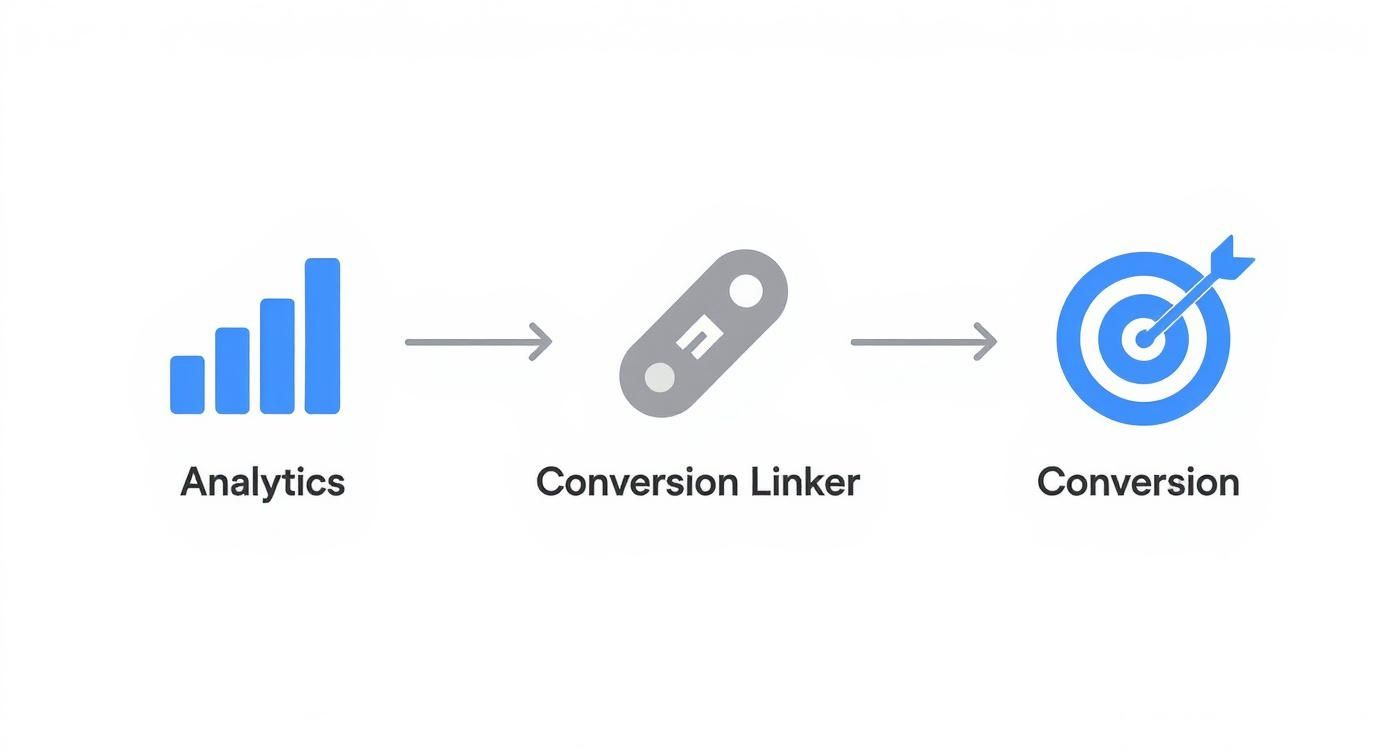
The insight here is that GTM allows you to create a logical sequence of events. The system ensures data is captured and attributed correctly, all orchestrated by your trigger configurations.
Capturing rich data with data layer variables
The final piece of this puzzle is getting that extra contextual data—like 'form_location'—out of the dataLayer and into your tags. For that, you need a Data Layer Variable.
Inside GTM, you'd just create a new variable, select 'Data Layer Variable' as the type, and enter form_location as the "Data Layer Variable Name." That's it.
Now, GTM has a variable that holds the value 'homepage_hero' (or whatever other location you define). You can insert this variable into any of your tags. For instance, you could send it as a custom parameter with your GA4 event, letting you build reports in Analytics that compare signup performance across different forms on your site.
This is how you go from just counting conversions to truly understanding the context behind them. Knowing you got 100 signups is fine. Knowing that 75 came from the homepage hero form and only 25 from the exit-intent popup is the kind of insight that tells you exactly where to focus your optimization efforts.
Working with your development team to implement a structured dataLayer is one of the highest-impact activities you can do for your marketing analytics. It's the foundation for sophisticated tracking that provides real business intelligence. It’s also crucial for building out more advanced capabilities, like dynamically tracking form submissions. If you want to see how this concept can be applied at scale, check out how dynares handles form features to streamline data capture.
This isn't just a "nice-to-have" feature. In a world where every click and interaction matters, a well-planned dataLayer is your competitive advantage.
A testing and publishing workflow you must follow
Let’s talk about the one step that separates the pros from the people who break their analytics every other Tuesday.
Deploying a new tag without testing it first is like pushing code straight to production without any QA. It's reckless, dumb, and a guaranteed way to create a massive data headache for yourself down the line.
Google Tag Manager has a built-in safety net called Preview mode, and you need to treat it like a non-negotiable part of your workflow. Every single time. This isn't just a suggestion; it's the only sane way to manage tags. It’s how you ensure the beautiful logic you built in GTM actually works in the chaotic reality of a live website.
This process prevents you from flying blind and gives you the confidence that your data is accurate from the moment you hit "Publish."
Mastering the preview and debug console
When you click that "Preview" button in the top right of your GTM workspace, you're not just launching a test. You're opening a direct line of communication between GTM's brain and your live website. GTM opens a new tab for the Tag Assistant, you plug in your site’s URL, and your website loads in another window with the debug console attached.
If you see that "Connected!" message, you're in business. The debug console is your mission control. On the left side, you'll see a real-time stream of events as you navigate your site—Container Loaded, DOM Ready, Link Clicks, and any custom events you’ve configured.
The debug console isn't just a tool; it's a mindset. It forces you to be meticulous and to verify every assumption you've made about your triggers and variables. This is where you catch the small mistakes before they become big problems.
Clicking on any event in this stream shows you exactly what happened at that moment in time. The "Tags" tab at the top is your source of truth. It shows which tags fired and, just as important, which ones didn't and why. This is where you diagnose issues and get immediate, powerful feedback.
Inspecting your data before it goes live
Beyond just checking if tags fired, Preview mode lets you inspect the actual data being processed. Click on a tag that fired, and you can see the precise values of the variables it used. Did your transaction_value variable correctly pull the order total from the dataLayer? You can see it right there.
This is also where you validate your dataLayer pushes. When a custom event like waitlist_signup is pushed, you'll see it appear in the event stream. Click on it, then switch to the "Data Layer" tab in the console. You can see the exact structure of the data your website sent, verifying that all the necessary information is present and correctly named.
This detailed inspection is your final quality check. It’s how you ensure you're not sending "undefined" values to Google Analytics or reporting zero-value conversions to Google Ads. You verify everything, confirm it all works as expected, and only then do you move on.
Publishing with purpose
Once you've tested everything and confirmed it's working flawlessly, you're ready to publish. Back in the GTM workspace, hit the big blue "Submit" button. But don't just mindlessly click through.
GTM prompts you to create a Version Name and Description. This is your chance to leave a clear audit trail for yourself and your team. Don't be lazy here. A name like "Published changes" is useless. Instead, be descriptive: Add GA4 Event - Waitlist Signup Tracking. Add a description explaining what you did and that you verified it.
This level of detail is a lifesaver. Six months from now, when something looks off, you'll have a perfect history of every change made to the container. If you ever need to, you can instantly roll back to a previous version, restoring your setup with a single click. This disciplined workflow is the mark of a professional.
Future-proofing your tracking with server-side GTM
Let’s be direct. The way we've been tracking data on the web is on its last legs.
Between privacy regulations getting stricter, ad blockers becoming standard, and the slow death of third-party cookies, client-side tracking is becoming less reliable every single day. This isn't a problem for tomorrow; it's a problem now.
This is where you need to think ahead. The future is Server-Side Google Tag Manager. Instead of your website firing a dozen tags directly from a user's browser—where they can be blocked or stripped of data—you send one clean, consolidated data stream to your own server. From there, your server distributes that information to Google Analytics, Google Ads, and any other platforms you need.
It’s a game-changer for a few critical reasons.
Why server-side is the only way forward
Moving tag execution off the browser and onto your own server isn't just a clever trick; it’s a fundamental shift toward building a more resilient data strategy. The impact goes far beyond just getting your tags to fire. By 2026, GTM's server-side tagging will be a critical solution for navigating the modern web. You can find some great insights on GTM's evolution at tatvic.com that explain this shift well.
Here’s why this actually matters to you:
- Improved data accuracy: Ad blockers and browser privacy features (like Apple's ITP) are designed to target and kill client-side scripts. When you send data from your server instead, you bypass many of these interruptions. The result is a more complete and accurate dataset to base your decisions on.
- Faster site speed: Your website only has to load one lightweight script for your GTM server container. All the heavy lifting of loading and firing tags for other platforms happens on your server, not the user's device. That means a faster, better experience for your visitors.
- Enhanced security and control: You are in complete control of what data leaves your server and where it goes. This creates a much more secure environment and makes it easier to comply with privacy laws like GDPR because you have a single point of control.
You might not implement server-side tagging tomorrow, but knowing what’s coming puts you miles ahead. Understanding this shift is about survival. Companies that stick with outdated client-side methods will soon be making decisions based on incomplete, unreliable data.
This approach also aligns perfectly with modern AI-driven marketing. Better data quality means better inputs for machine learning models, whether you're optimizing ad spend or personalizing user experiences. It’s also foundational for more advanced techniques, like using tools for streamlined conversion uploads to Google Ads to get a clearer, more honest picture of your campaign ROI.
This is how you build an infrastructure that doesn't just work today but is ready for whatever comes next.
Common Google Tag Manager questions
Let's cut through the noise. When you're learning something new, a few core questions always pop up. Here are the ones I hear most often from founders and marketers diving into GTM.
GTM vs. Google Analytics: What's the real difference?
This is the big one. People think they’re alternatives, but that's just wrong. They’re partners, designed to work together.
- Google Analytics (GA) is the reporting tool. It’s where you see your data—who visited, what they did, and where they came from. Think of it as the destination.
- Google Tag Manager (GTM) is the delivery system. It’s the tool you use to send data to Google Analytics (and other places like Google Ads or Meta). It's the vehicle.
You use GTM to deploy and manage your GA tracking code. It’s that simple. GA gives you the insights; GTM gives you the control and speed to get the data there in the first place.
Do I really need GTM if I only use Google Analytics?
Honestly? Yes. Even if GA is your only tag today, using GTM sets you up for the future.
Think of it this way: installing GA directly is like hardcoding a single feature. When you inevitably need to track a new conversion or add another tool, you’re back to bugging developers.
Using GTM from day one is like building a proper deployment pipeline for your data. It’s all about agility.
Is GTM hard to learn?
It has a learning curve, no doubt. But is it harder than waiting weeks for a simple tracking change? Not a chance.
The initial setup might feel a bit technical, but once you grasp the concepts of tags, triggers, and variables, you unlock a massive amount of power. It's a skill that pays for itself almost immediately in saved time and better data.
Don't be intimidated. Just start with the basics we’ve covered.
Ready to stop wasting ad spend and scale your campaigns with precision? dynares uses AI to build and optimize thousands of high-intent Google Ads landing pages, ads, and forms for every keyword. Boost your conversions, not your workload. See how it works at https://dynares.ai.